
If you use ComfyUI with large workflows and/or many extensions, you may have noticed that it gets slower over time. A run that takes 2 seconds initially may at some point take 10+ seconds even though you haven't changed any parameters. You may find yourself frequently reloading the browser tab or restarting the program entirely in order to reclaim speed.
If any of that sounds familiar, you'll definitely want to try these extensions which are designed to address the underlying problems:
ComfyUI-DisableJobHistory
It turns out that your Job History can cause a substantial delay before the start of execution. Actually, it's the main culprit; for whatever reason, Comfy seems to parse the entire history metadata at the outset of every job. Maybe this is the intended behavior, or maybe it's due to a problematic extension... either way, clearing out your job queue is the easy fix, and this extension will do it for you automatically.
Of note, there's a setting in ComfyUI called "Queue history size" that should theoretically help with performance. But it doesn't seem to be working as intended... even if it's set to 2 jobs max, my execution delay spirals out of control.
Check if this applies to you
Load up a large workflow and try clicking the "Run" button a bunch of times without changing any parameters. Check your console output for execution times. Here's mine (I stripped out "got prompt" lines to save space):
Prompt executed in 0.18 seconds
Prompt executed in 0.21 seconds
Prompt executed in 0.21 seconds
Prompt executed in 0.23 seconds
Prompt executed in 0.23 seconds
Prompt executed in 0.26 seconds
Prompt executed in 0.63 seconds
Prompt executed in 0.27 seconds
Prompt executed in 0.27 seconds
Prompt executed in 0.26 seconds
Prompt executed in 0.27 seconds
Prompt executed in 0.28 seconds
Prompt executed in 0.32 seconds
Prompt executed in 0.39 seconds
Prompt executed in 0.37 seconds
Prompt executed in 0.39 seconds
Prompt executed in 0.42 seconds
The upward trend is pretty clear, and it will keep getting worse. Now here's the same test with ComfyUI-DisableJobHistory active:
Prompt executed in 0.19 seconds
Prompt executed in 0.18 seconds
Prompt executed in 0.20 seconds
Prompt executed in 0.19 seconds
Prompt executed in 0.18 seconds
Prompt executed in 0.20 seconds
Prompt executed in 0.19 seconds
Prompt executed in 0.23 seconds
Prompt executed in 0.20 seconds
Prompt executed in 0.19 seconds
Prompt executed in 0.19 seconds
Prompt executed in 0.21 seconds
Prompt executed in 0.19 seconds
Prompt executed in 0.25 seconds
Prompt executed in 0.24 seconds
Prompt executed in 0.25 seconds
Prompt executed in 0.20 seconds
Prompt executed in 0.21 seconds
Much more stable. It is still on a slightly upward trajectory, but the next two extensions will fix that.
ComfyUI-DisableBrowserLogs
Recording problems to the browser console is great!... that is, until a program decides to collect the same message 1000+ times with verbose tracebacks, all at once.
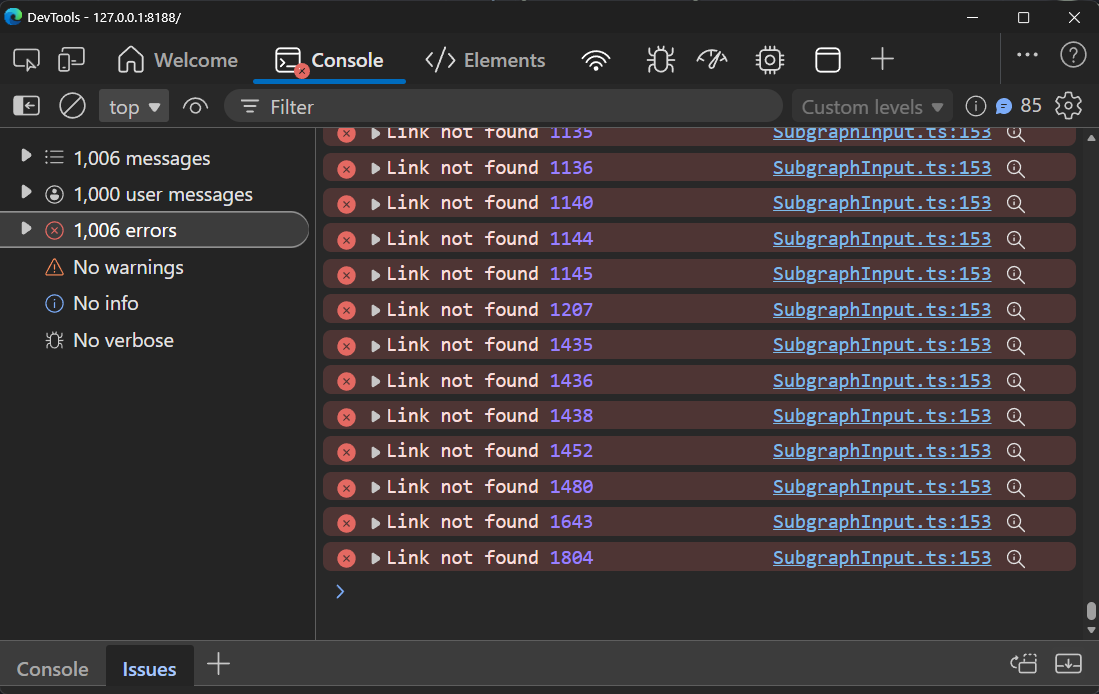
In my case, I think these errors are caused by using Get-Set nodes as subgraph inputs. The workflow actually runs just fine, but the logs are contributing to slowdown.
Check if this applies to you
Just use Comfy for a while then open up your DevTools with F12. If you only see a handful of messages, you probably don't need this extension. But in my case, it definitely helps the interface remain snappy and responsive. Just remember to disable the extension if you ever need to debug something.
ComfyUI-TempFileCleaner
Every time you send an image to a node like Preview Image, a file is created in your comfyui/temp folder. Certain extensions, firewalls, etc. may check the contents of this folder regularly, and if it happens to have thousands of items in it, you can expect slowdowns.
ComfyUI wipes the temp directory on startup, but it's still dreadfully easy to amass tons of images there over the course of a session.
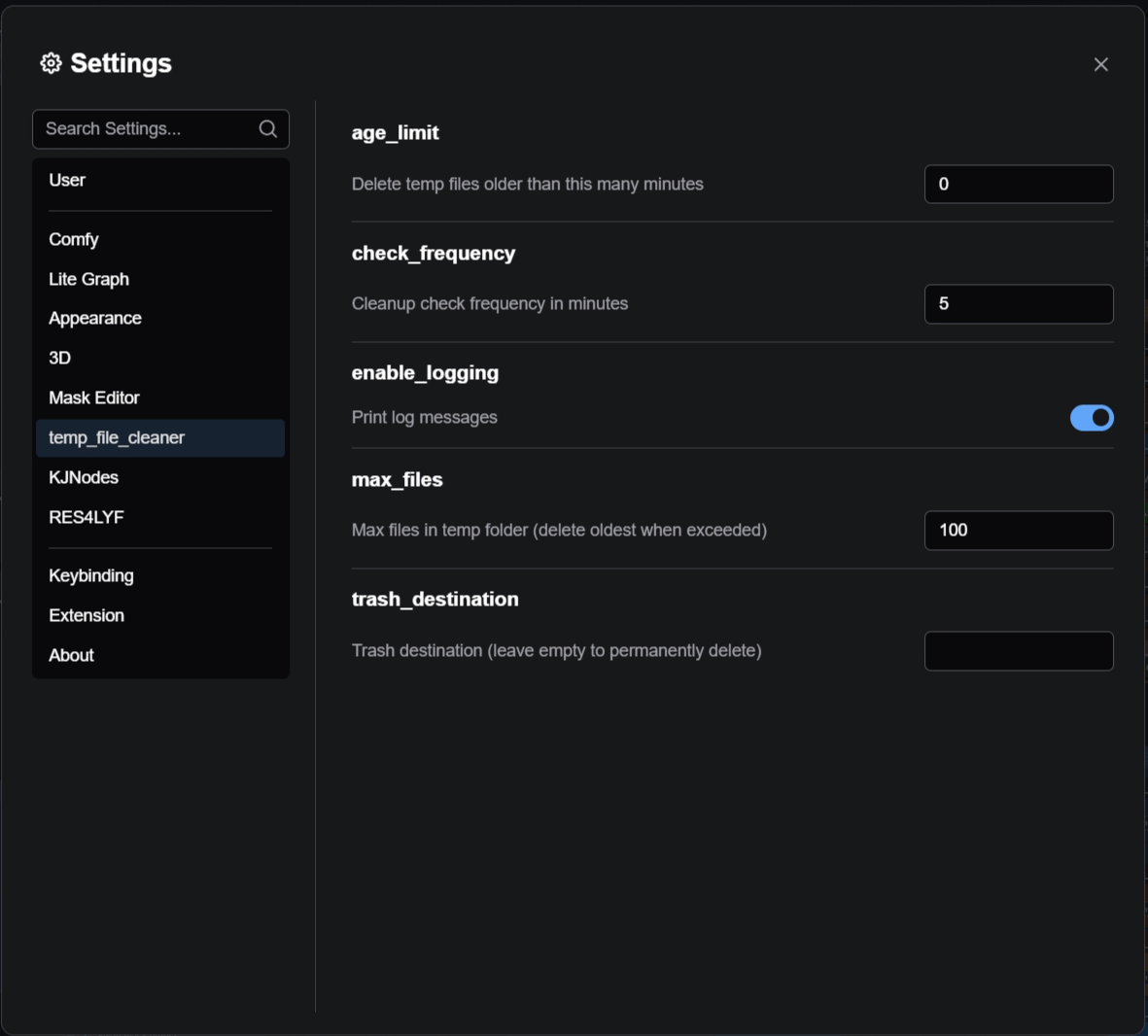
The TempFileCleaner allows you to define a cleanup routine while Comfy is open. You can have it delete your oldest temp files after x minutes, and/or delete them after amassing y number of temp files, and/or move them somewhere else instead of deleting them. It's pretty customizable.
Check if this applies to you
Use Comfy as you normally would until things start feeling a bit slow. Now delete the contents of your comfyui/temp folder. Return to ComfyUI and see if that helped at all. If it did, it's probably worth cleaning the folder at regular intervals.
Bonus Tips
Outside of extensions, here are a few things you can do to improve your ComfyUI performance:
Turn off link visibility in large workflows. I set up a keybinding (h) and use it all the time. Alternatively, you can set "Link Render Mode" to Hidden in the settings menu. This gives a pretty noticeable FPS boost.
Windows
explorer.exeanddwm.exeare leaky VRAM hogs. You can use this script to restart these processes (the script isn't mine, but I use it and it works well.)Avoid using the Frontend's "Nodes 2.0" for now. They look beautiful but performance is significantly worse. :-( They are also missing some important inputs, like the "control after generate" field on integer nodes.
Thank you for reading. I hope you got something helpful out of it. You can check my repositories for additional ComfyUI nodes you may like - most of them are for quality-of-life improvements rather than performance. Have a nice day!